
Features › Languages and help
Languages and help
In the office a browser is all you need; the drivers work with the driver app. An introduction shows the first steps, the AI help answers questions about operation, and everyone works in their own language.
Six languages for interface and documents
The web application, driver app and documents are available in German, English, French, Polish, Italian and Ukrainian.
- Per user: The globe in the top bar opens the language selection. The choice is saved with the user.
- Driver app: follows the language of the device; a different one can be chosen in the app’s settings.
- Per delivery address: The delivery note PDF and the accompanying email go out in the language of the delivery address – regardless of the language your office works in.
- The tour plan and logbook appear in the language of the user who opens them. Dates and numbers follow the selected language.
Introduction in a few steps
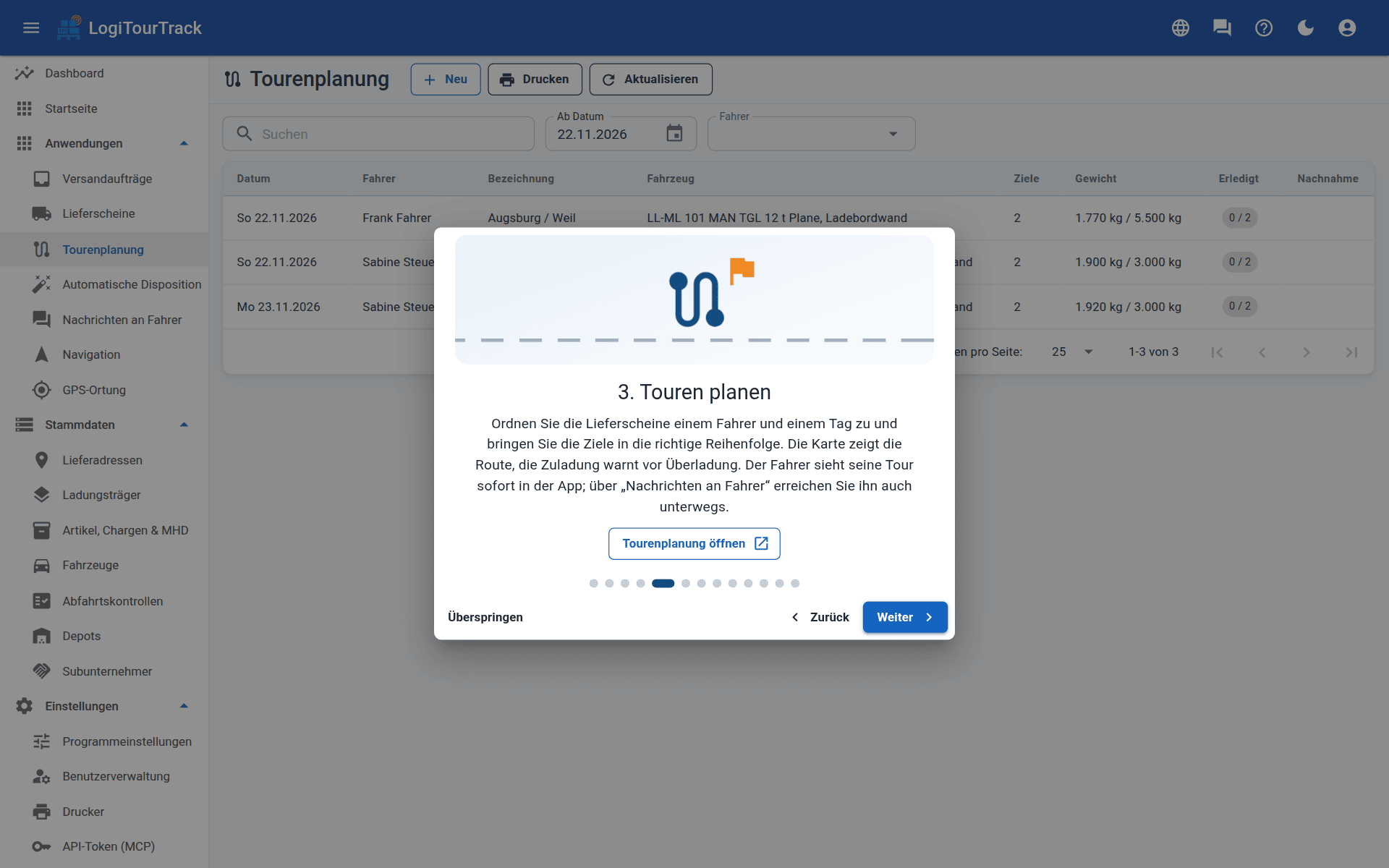
- Web application: On the first visit, an animated introduction shows the way from the first delivery note to the signed delivery – master data, delivery note, tours, driver app, tracking, company and delivery document, dashboard. Each step takes you to the relevant page via a button.
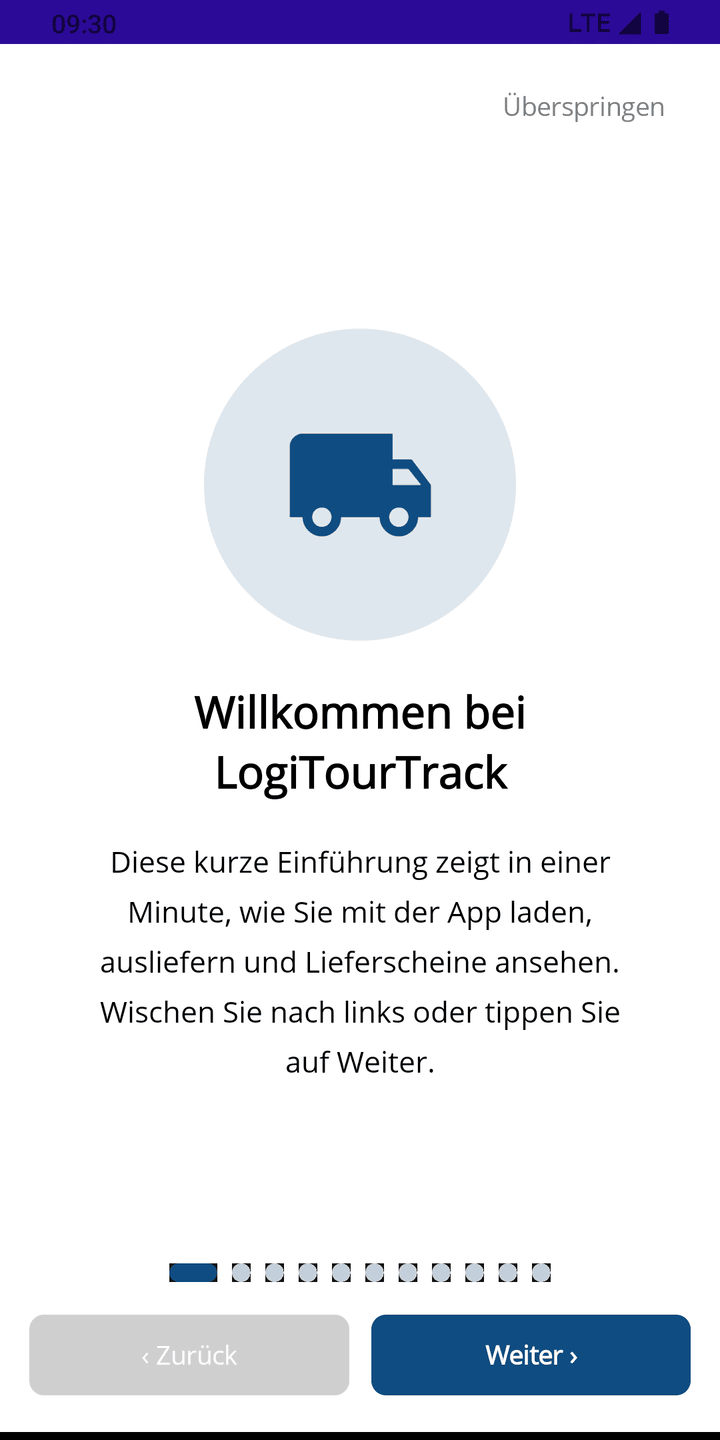
- Driver app: After the first sign-in, the introduction explains the tiles on the home page, scanning, goods delivery and working without a network connection.
- Again at any time: in the web application via the question mark in the top bar, in the app via the menu on the home page.
AI help: questions about operation
The sparkle icon in the top bar of the web application opens the AI help. It answers questions about operation from the program documentation and knows which page is currently open.
- Help only, read-only: The AI help sees no data from your business – no delivery notes, tours, tracking or master data – and changes nothing.
- In your language: It answers in the language of the interface and names buttons and fields the way you see them.
- Included free of charge: The AI help is part of the web application and costs nothing extra.
Answers are generated by an AI from the program documentation; they may contain errors.
Example: the first day with the demo version
- You create the demo version with sample data. Your instance then contains a sample business – in the German version, Muster Logistik GmbH in Landsberg am Lech with customers such as Getränke Huber, with articles, vehicles, delivery notes and tours.
- After the first sign-in, the introduction starts. You click through the steps or skip them.
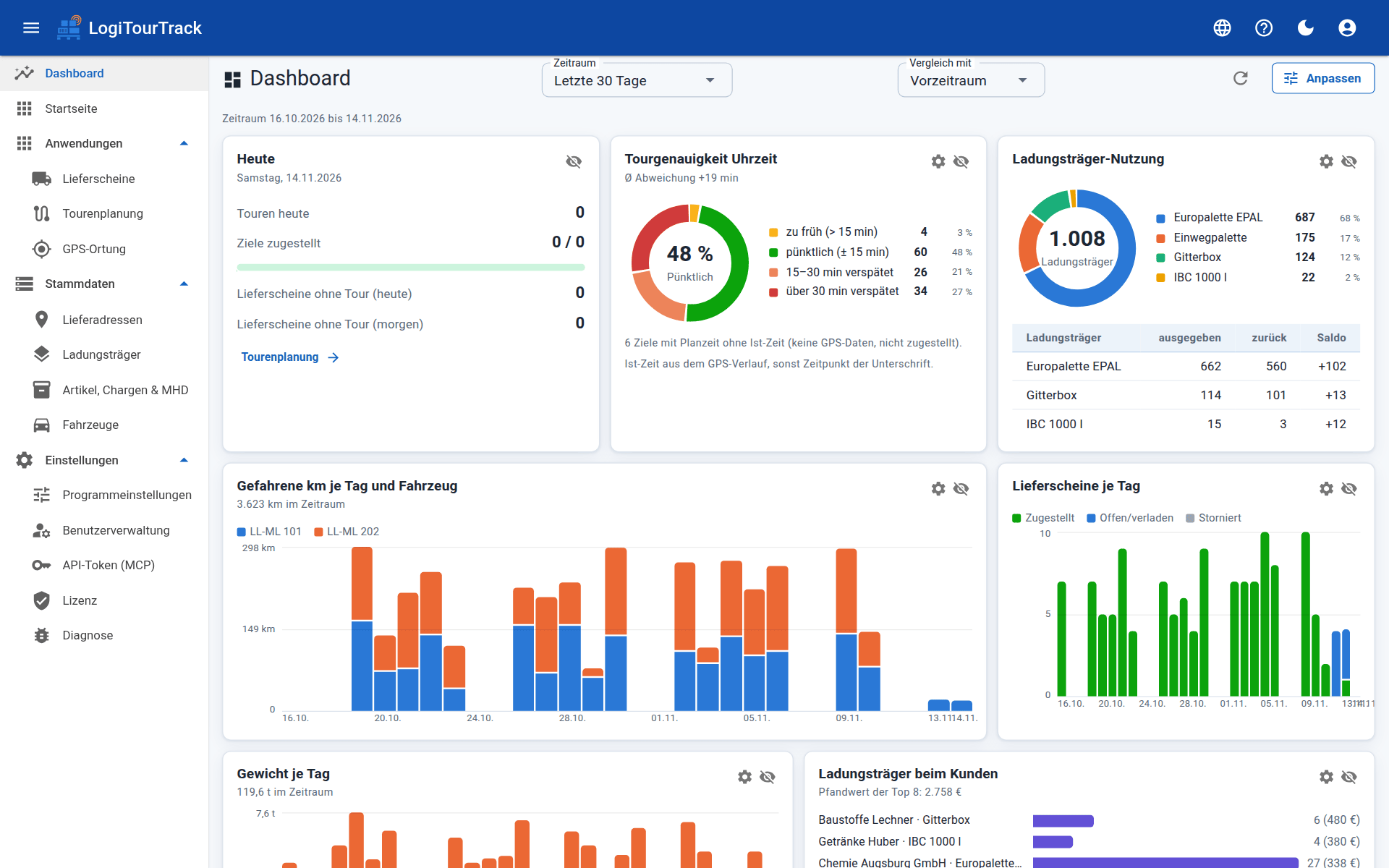
- The dashboard shows today’s status and the delivery notes per day. A click on a bar opens the delivery note list for that day.
- You ask the AI help: ‘How do I create a new entry here?’ – and get the steps for the page that is open.
- In the driver app, you enter your company’s account name on first launch and sign in. The app’s introduction explains ‘My tours (today)’ and ‘Load tour’.
Dashboard and home page
- Key figures at a glance: delivery notes, deliveries, weight, kilometres driven, tours and punctuality – for 7, 30 or 90 days, a month or a custom period, optionally compared with the previous period or the previous year.
- Customisable per user: Via ‘Customize’ you choose tiles, order and width; for each tile you can set the period, sorting and filters by vehicle, driver or delivery address.
- Click through: from the bar to the delivery note list, from the deviation to the tour or to the map.
- Home page with tiles: Anyone who does not need the dashboard starts on a page with one tile per area. The dashboard has its own permission.
Consistent interface, light or dark
- List and form: Every page first shows a list; a click on a row opens the record. Save and Close are always at the top, rarely used actions in the ‘More’ menu.
- Search: Every word must occur somewhere, and the search is not case-sensitive – ‘huber lands’ finds ‘Getränke Huber, Landsberg’.
- Nothing gets lost: If there are unsaved changes, the program asks before closing a form.
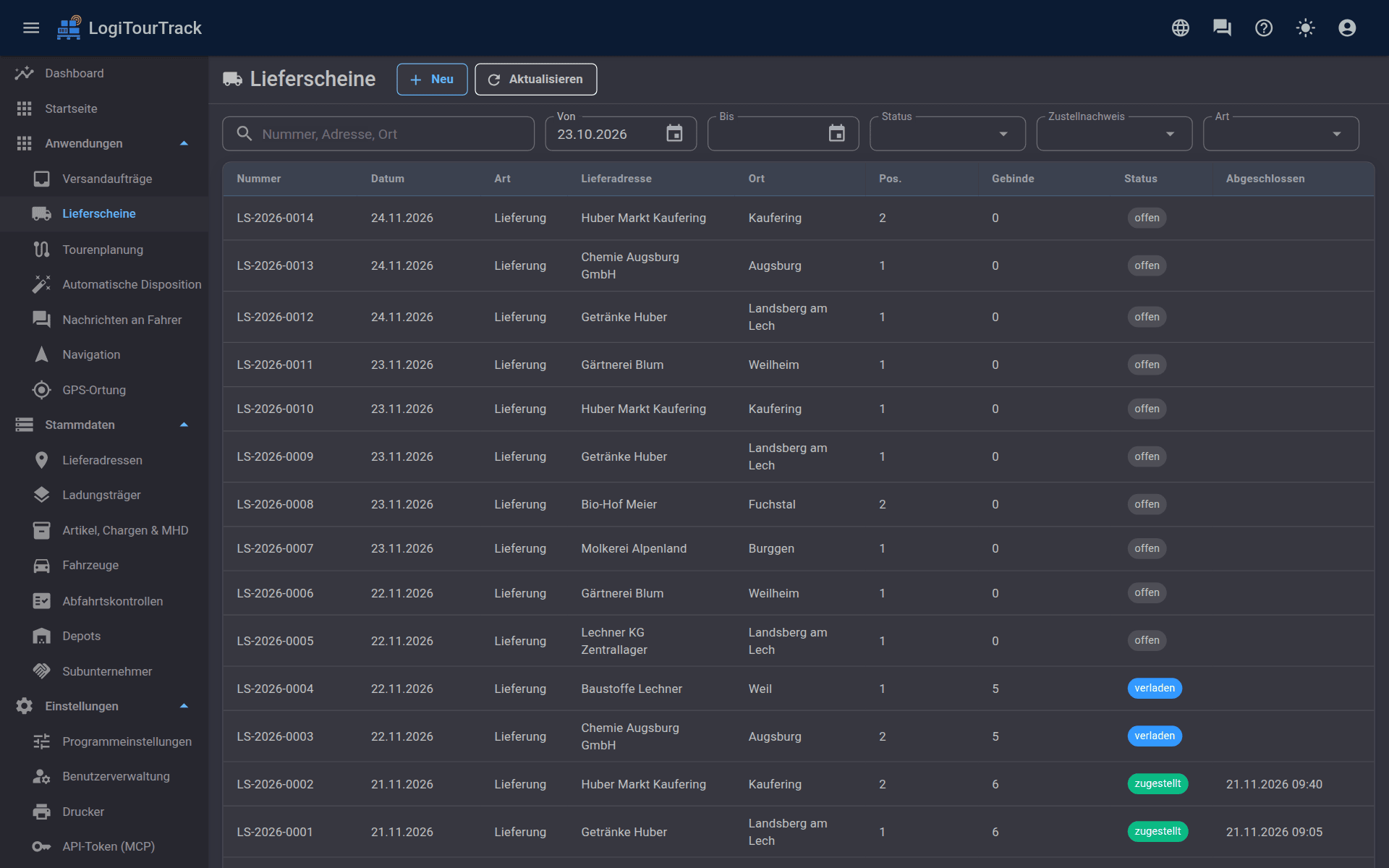
- Light and dark mode: in the web application via a button in the top bar, in the driver app via the menu on the home page.
- Stay signed in: If you wish, the sign-in in the browser remains valid for 30 days.
Driver app: for working at the vehicle
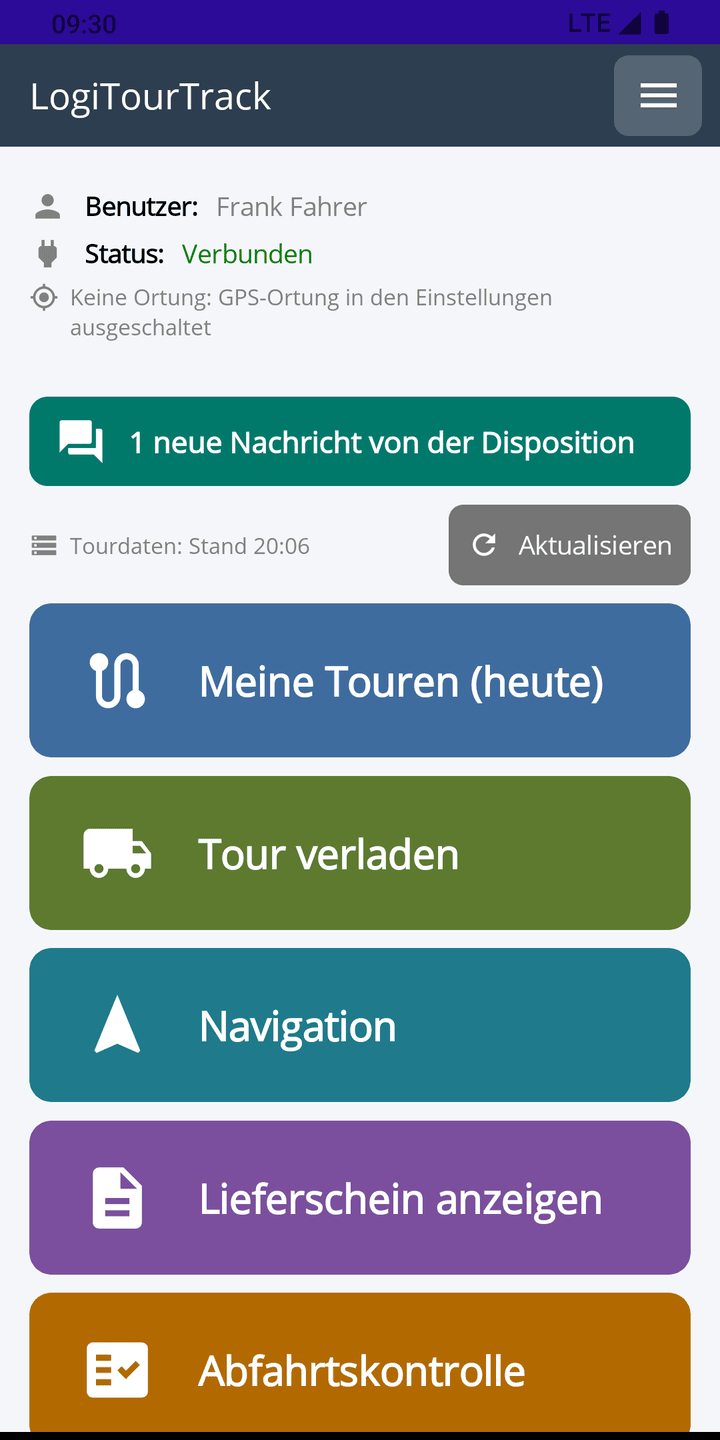
- Large tiles: ‘My tours (today)’, ‘Load tour’, ‘Navigation’ and ‘Show delivery note’ – each driver sees only what they have a permission for.
- Offline operation: Tours and delivery notes are kept in store on the device. Recorded data is saved and sent automatically as soon as there is a network connection again.
- Scanner sets itself up: On handhelds from several manufacturers, the app switches the built-in scanner to output to the app at startup. Which devices are suitable is listed under Supported devices.
- Sounds when scanning: A separate sound for success, duplicate scan and error – the driver does not have to look at the screen.
- Notices from the office: If dispatch changes the tour, the app reports ‘Tour has been changed’; the driver reads and answers messages from dispatch in the app.
Get started without installation – and get help when you need it
- No installation in the office: The web application runs in the browser at your company's address. Drivers install the app (Android or iPhone) and enter your company's account name the first time they start it.
- Sample data to try out: If you wish, the demo version starts with customers, articles, delivery notes and tours – matching the selected language, with a sample business in the respective country.
- Explainer videos: Short videos show an overview, loading and unloading with barcode scan, printing and connecting your ERP system – under Explainer videos.
- Support: You submit questions as a ticket in your customer account under Support.
Try it out
Free for 30 days, with your own address and, if you wish, with sample data.