
Features › Goods delivery at the customer’s site
Goods delivery at the customer’s site
At the customer’s site, the driver opens their tour stop in the driver app, records the load carriers handed over and taken back, and has the recipient sign on the screen. The delivery note is then shown as delivered in the office, and the customer receives it with signature by email.
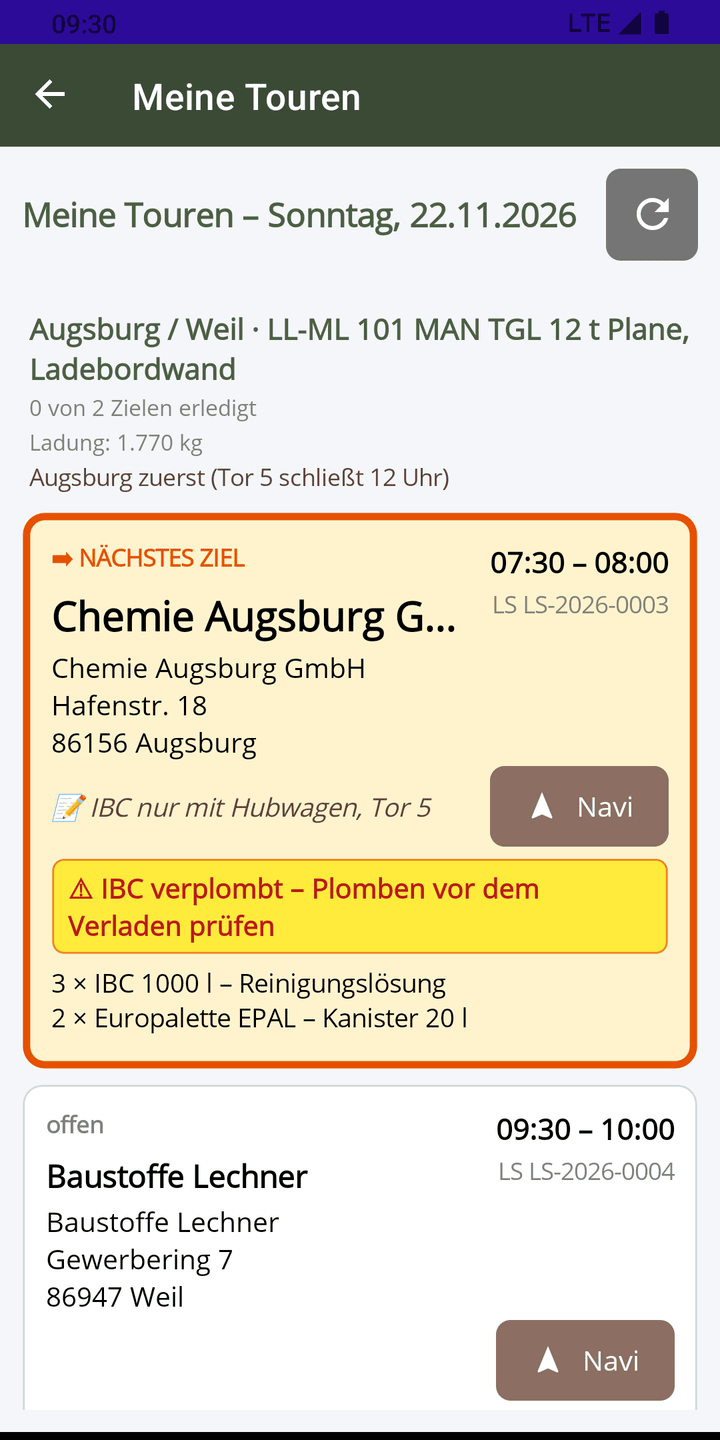
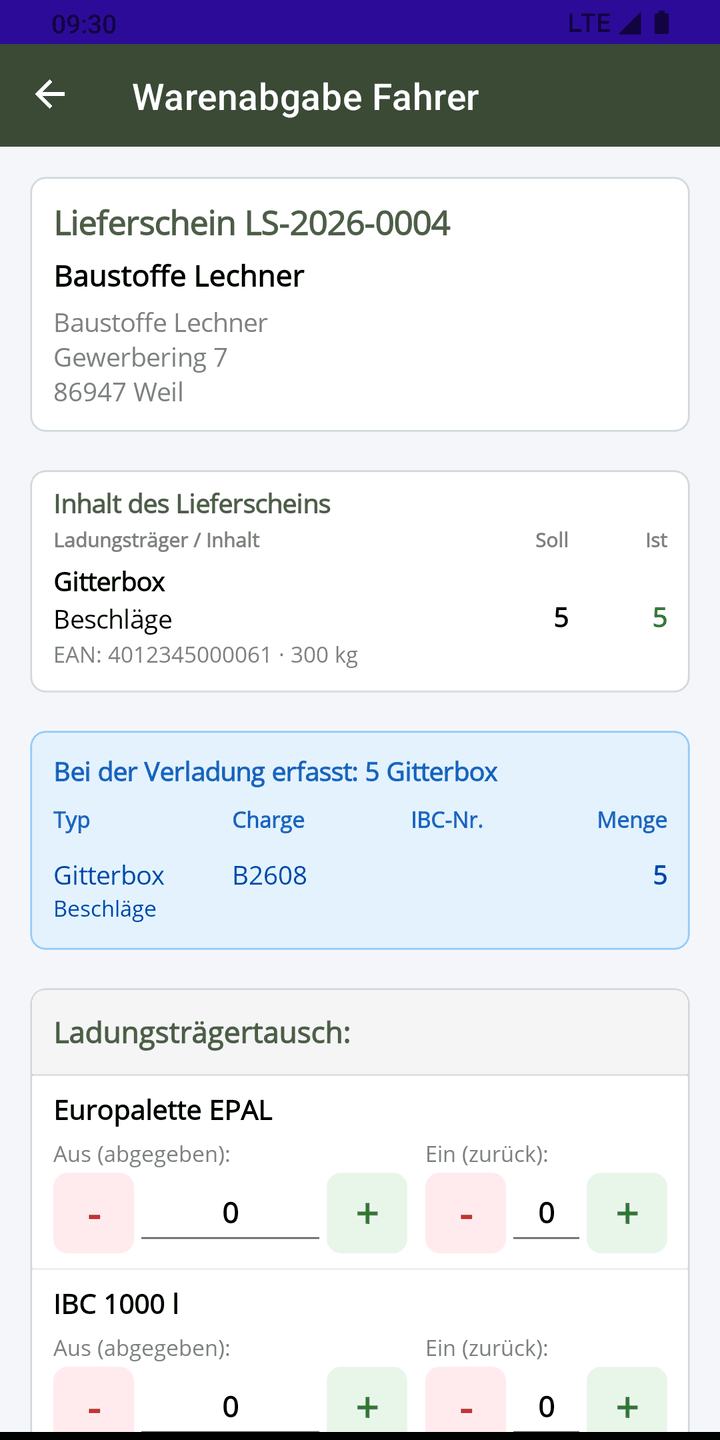
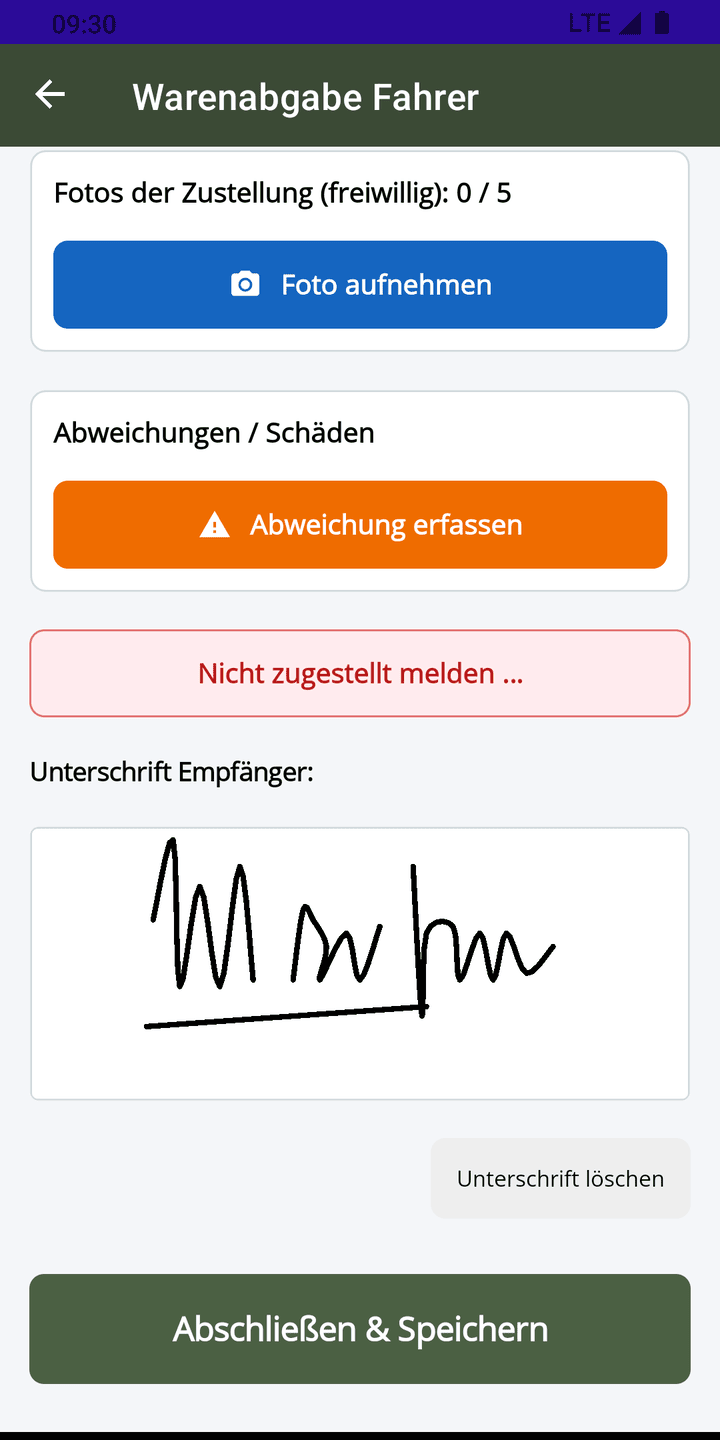
Signature and load carrier exchange
A tap on an open stop under ‘My tours (today)’ opens goods delivery for this delivery note.
- Contents of the delivery note: for each line item, load carrier, contents, planned and loaded quantity – the same presentation as during loading.
- Load carrier exchange: For each load carrier, the driver counts what they hand over and what they take back. LogiTourTrack posts the movements and tracks the stock at the customer.
- Signatory and signature: name of the recipient and signature with a finger on the touchscreen; a stylus is not needed.
- Remark, time and location: A remark can be added; the time of the signature and the last known location of the device are saved with the completion.
Example: delivery to Getränke Huber
- Under ‘My tours (today)’, the driver taps the stop Getränke Huber, Augsburger Str. 44 in Landsberg am Lech. The stop carries the note ‘Delivery at loading dock 2, 7 a.m.–3 p.m.’.
- Goods delivery shows the contents of the delivery note, for example 4 × Euro pallet EPAL with mineral water 12×1 l, all loaded.
- He unloads four pallets and takes three empty ones with him: for ‘Euro pallet EPAL’ he enters 4 under ‘Out (handed over)’ and 3 under ‘In (returned)’.
- The recipient gives his name, M. Huber, and signs on the screen.
- With ‘Complete & save’ the delivery note is delivered in the office, Getränke Huber receives the PDF with signature by email, and the stock of Euro pallets at the customer has risen by one pallet.
Scan when unloading or just count
You define whether scanning takes place when unloading in the settings under Loading (‘Also scan recorded packages when unloading’).
- Switched off (default): Load carriers handed over and taken back are only counted.
- Switched on: Every scan ticks off the package recorded during loading and counts up the quantity handed over for the matching load carrier – with built-in scanner, hand-held scanner or camera.
- If not all loaded packages have been scanned at completion, the app asks before completing.
Proof of delivery: photos, discrepancies, cash on delivery, temperature
What is required at goods delivery comes to the device with the delivery note. The app checks the mandatory details before the signature, and the server checks them once more on completion.
- Photos: up to five photos per delivery; off, optional or required in the settings. With ‘required’, there is no completion without a photo.
- Discrepancies and damage: type (damaged, shortage, wrong goods delivered, other), optionally line item, quantity, text and photos. The document lists the discrepancies in a table; the confirmation of receipt states them.
- Not delivered: The driver reports the reason – acceptance refused, nobody present, address not found, time window missed or other – optionally with text and photo. The delivery note remains open and can be rescheduled.
- Cash on delivery: The app shows the amount to be collected already in the tour list. Completion is only possible with ‘collected’ (amount, cash or card) or ‘not collected’ with a reason.
- Temperature: If the delivery address requires refrigeration, the temperature is a mandatory field at goods delivery – in the sample data, for instance, at Molkerei Alpenland.
In the office, photos, discrepancies, delivery attempts, cash on delivery and temperatures are shown on the delivery note in the ‘Proof of delivery’ section. The delivery note list filters by ‘with discrepancy’, ‘not delivered’ and ‘with cash on delivery’.
Collection by a carrier, collection and return at the customer’s site
- Collection by a carrier: If a carrier collects your goods, you set the switch on the delivery note – or the driver sets it in the app. Carrier and licence plate are then mandatory before the signature and appear in the confirmation of receipt.
- Collection and return at the customer’s site: If your driver collects goods from the customer, the app marks the tour stop as a collection. Goods delivery is then called collection note or returns note, the person handing over the goods signs, and the load carriers taken over are counted.
Immediately in the office, document by email
- On completion, the delivery note is set to ‘delivered’ in the office – with signatory, time, location, signature and load carrier exchange.
- The recipient receives the delivery note as a PDF with signature by email, in the language of their delivery address. The document is also filed in the document storage of the delivery note.
- Your ERP system fetches completion and document via the interface or has the delivery reported to it – see Integration and permissions.
- If required, the office completes a delivery note itself: on the delivery note page under ‘Completion (hand-over)’, with the same mandatory details.
Shipment tracking and delivery notice for the recipient
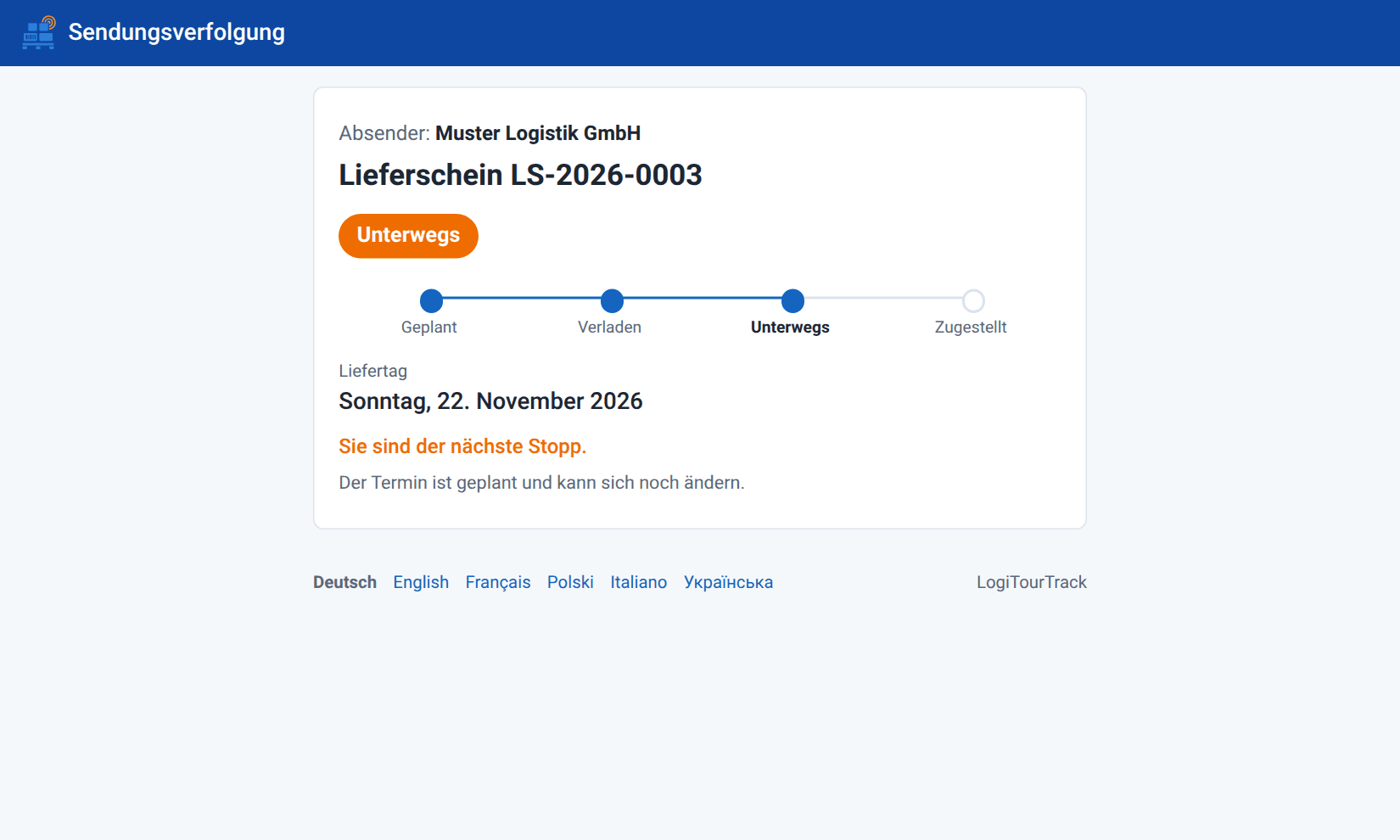
The recipient sees the status of their delivery via a link, without signing in.
- Content: sender, delivery note number, order number, status (planned, loaded, on the road, delivered), delivery day, estimated time window and the number of stops before it. The page does not show driver, licence plate, line items or other recipients.
- Delivery notice: If you wish, the link with delivery day and time window goes out automatically by email – as soon as the delivery note is scheduled or as soon as it is loaded. If the delivery day changes, a ‘Change of date’ email follows. Can be switched off per delivery address.
- Vehicle on the map: If you switch it on and GPS tracking is running, the page shows the vehicle’s position shortly before arrival.
- You can also copy the link on the delivery note (‘Copy tracking link’); the interface supplies it to your ERP system. It is valid until 14 days after delivery (adjustable).
Even without a network connection
Tours and delivery notes are kept in store on the device. The app first saves signature, load carrier exchange, photos and reports locally and sends them automatically as soon as there is reception again. The app’s home page shows what is still waiting and what the server has rejected.
Try it out
Free for 30 days, with your own address and, if you wish, with sample data.