
Features › Delivery notes
Delivery notes
The delivery note is at the centre: it is created in the office or comes from the ERP system, is scanned during loading, travels in a tour and ends with the recipient’s signature in the driver app.
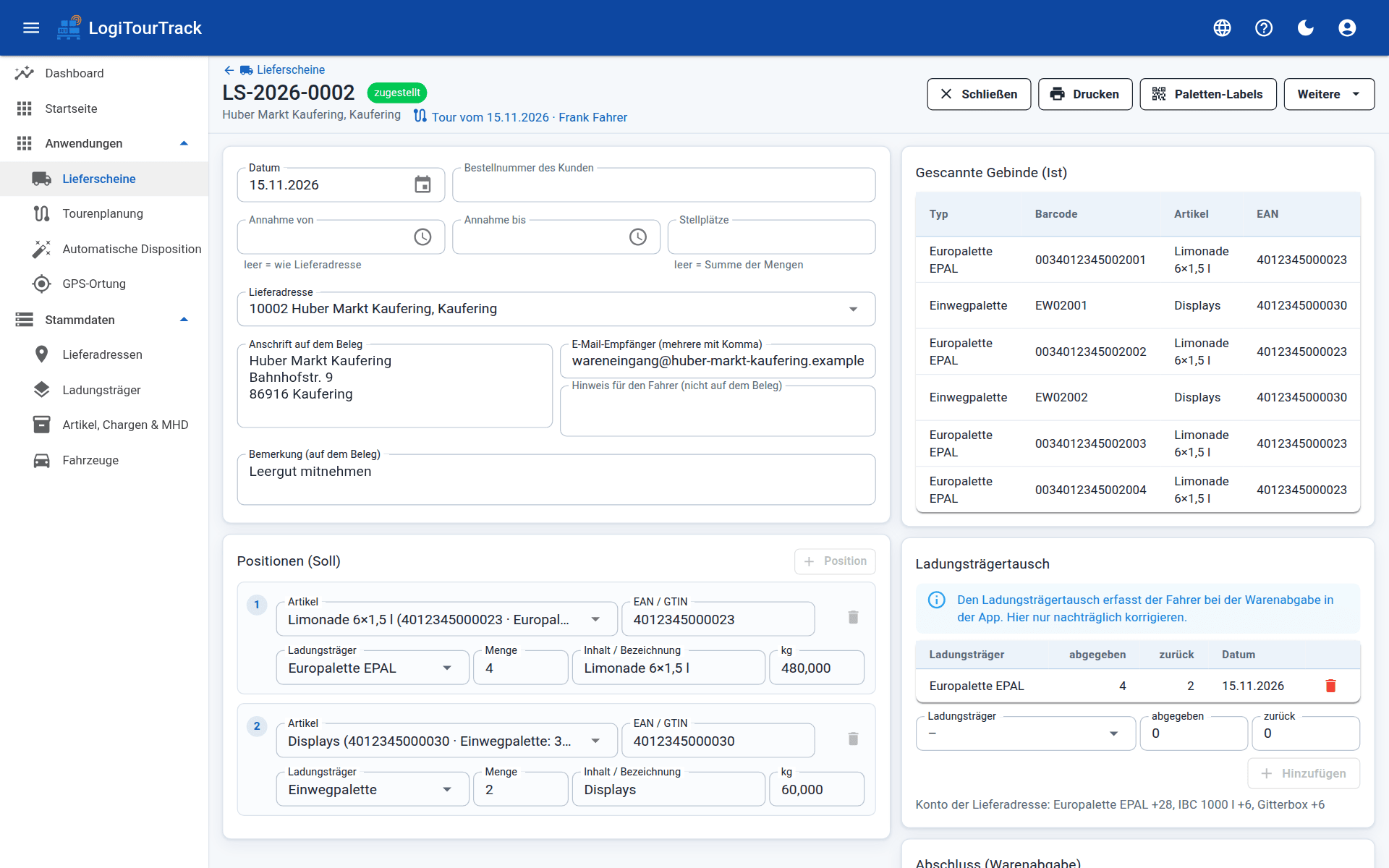
Line items and packages: planned and actual
Every delivery note states what is to be delivered (line items) and shows what was actually loaded (scanned packages).
- Header: delivery address, date, customer’s order number, remark for the document, note for the driver (not on the document) and email recipients.
- Line item: load carrier, quantity, contents, EAN/GTIN, weight, article number and buyer’s article number.
- If you select an article from the article master data, the line item takes over the EAN, description and load carrier and calculates the weight from quantity and weight per load carrier.
- Packages: For each scanned package, the delivery note shows load carrier, barcode, EAN, IBC number, batch, best-before date and time.
- A delivery note can also be created without line items and consist only of scanned packages.
- The customer’s order number appears in the header of the printed delivery note.
Status: from open to delivered
- open: created, nothing loaded yet.
- loaded: set as soon as the driver app transmits the first package.
- delivered: set on completion at goods delivery, usually with the recipient’s signature. The office can also complete a delivery note itself.
- cancelled: The delivery note is retained for traceability. If a delivery note is deleted, its number is not assigned again.
You filter the list by number, address, town, period, status and type.
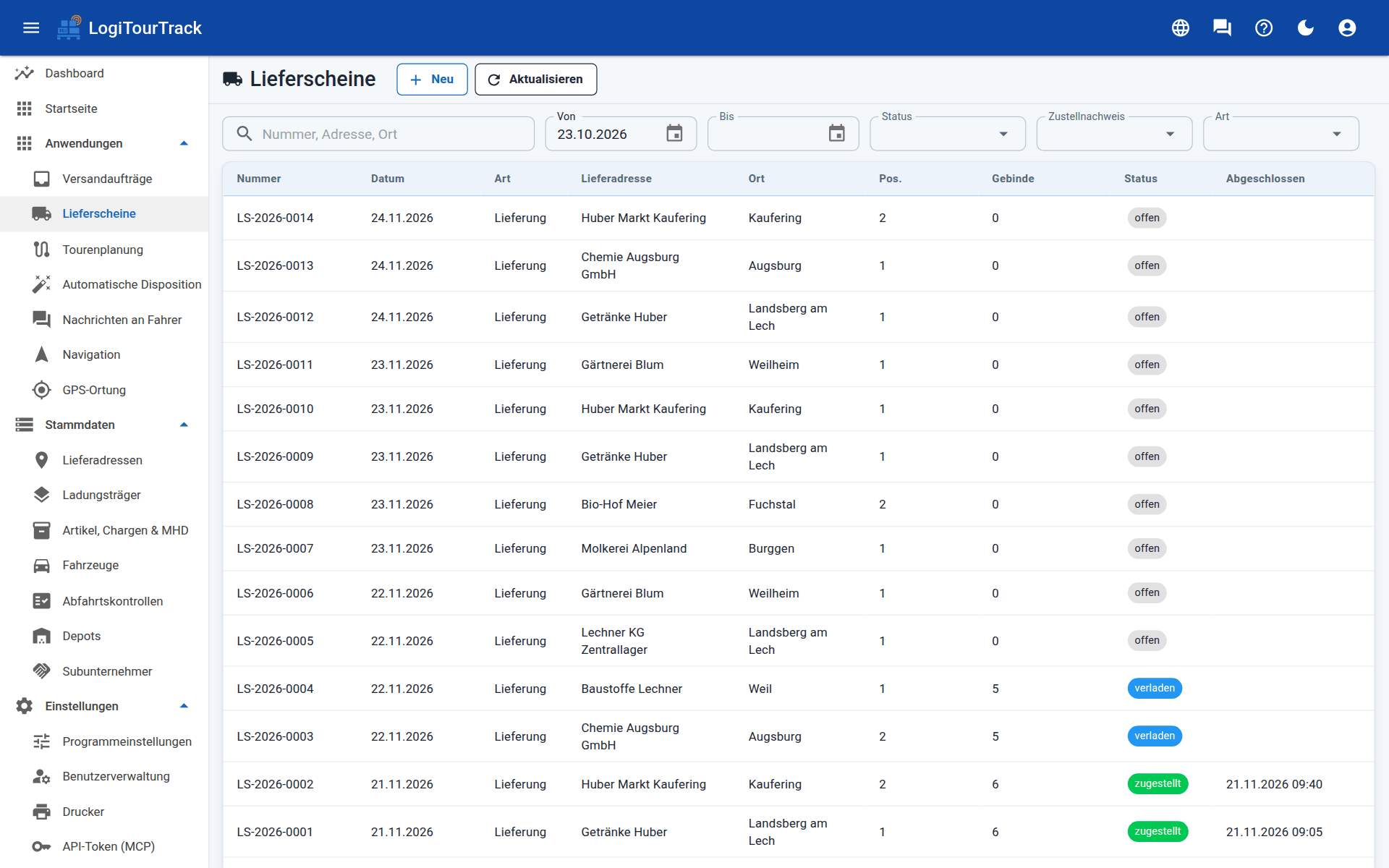
Example: a delivery note from the office to the signature
- Dispatch creates a delivery note for ‘Chemie Augsburg GmbH’: 3 × IBC 1000 l of cleaning solution (1,050 kg) and 2 × Euro pallet EPAL with 20 l canisters (420 kg).
- On saving, LogiTourTrack assigns the number from the number range; the status is ‘open’.
- The delivery note is added to the tour ‘Augsburg / Weil’. Driver Frank Fahrer scans three IBCs and two pallets during loading – the status changes to ‘loaded’.
- At the customer’s site the recipient signs in the driver app. The delivery note is immediately ‘delivered’, and the signed document is filed and sent by email to the stored recipients.
Shipping orders: preliminary stage without a fixed date
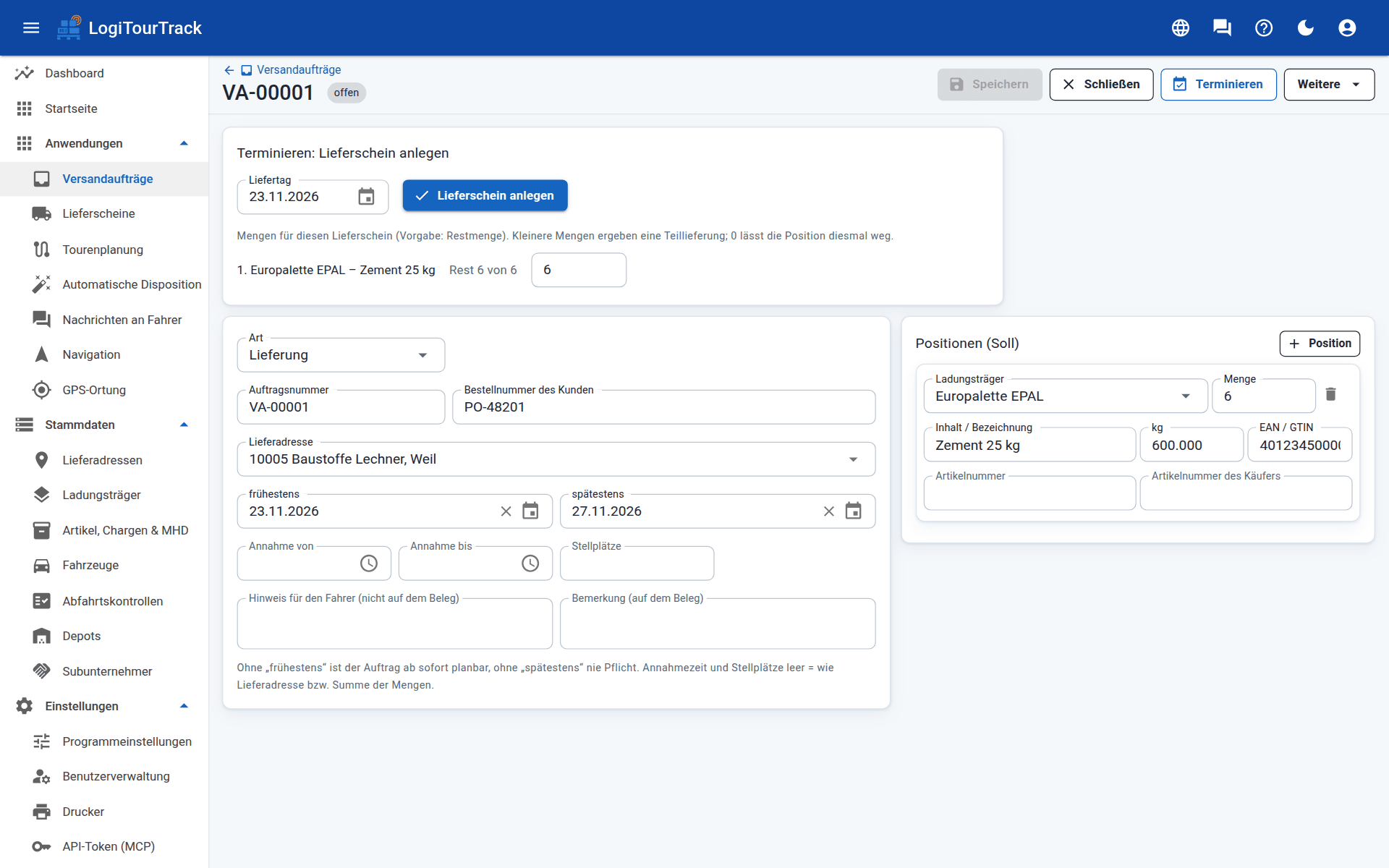
A shipping order does not yet have a delivery day, only a delivery window (earliest, latest). Scheduling it creates the delivery note with number and date.
- Partial delivery: When scheduling, you choose the quantity for each line item (default: remaining quantity). The order can still be scheduled with the remainder.
- Consolidated delivery: Several orders for the same delivery address and of the same type become one delivery note. Different order numbers are shown per line item on the document.
- Status: open, partly scheduled, scheduled, partly delivered, done or cancelled. For each line item you see the scheduled, delivered and remaining quantity; overdue orders are marked.
- Automatic dispatch *: also plans open shipping orders and schedules them when the proposal is applied.
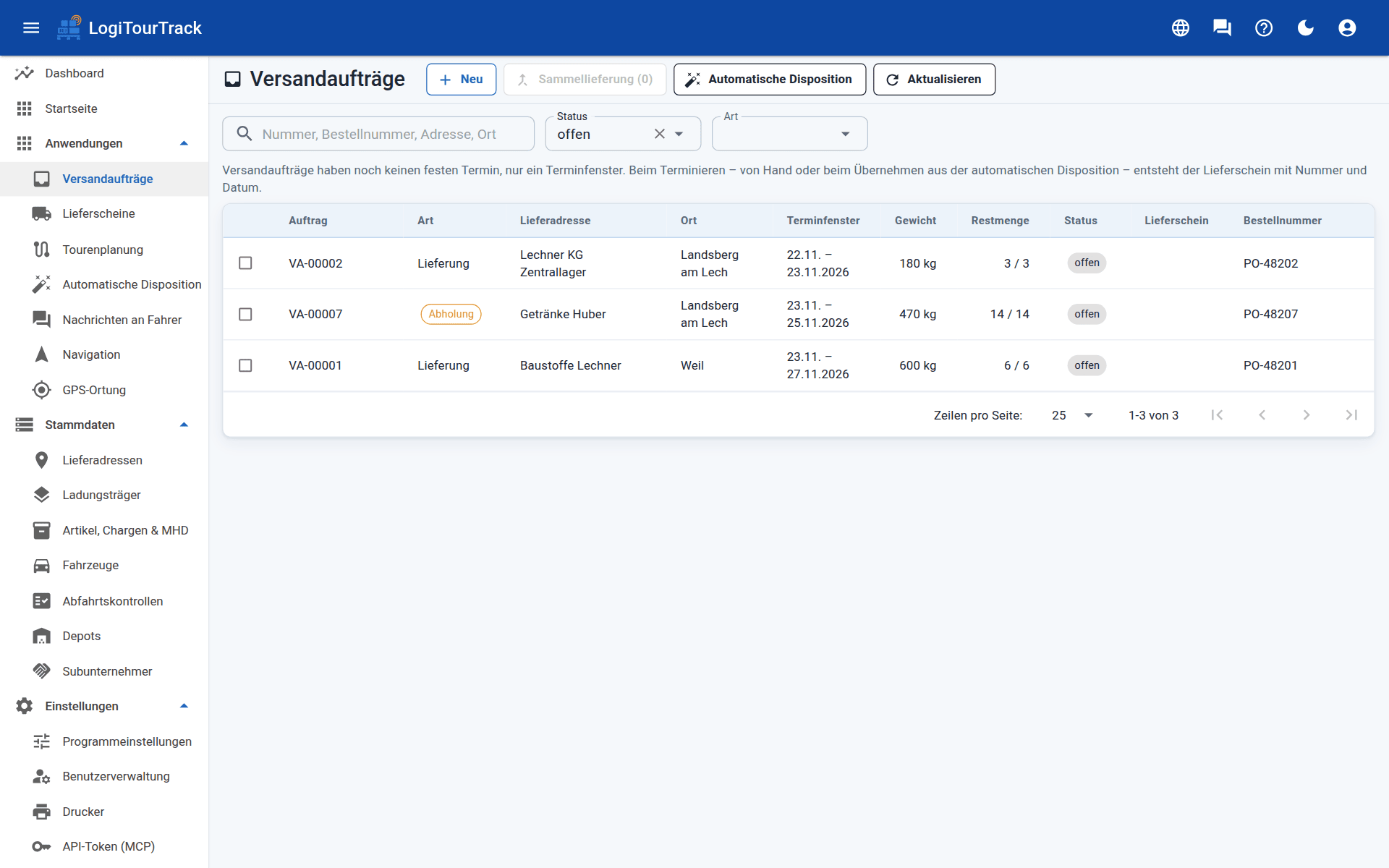
Example: partial delivery from a shipping order
- Shipping order with order number PO-48204 for ‘Chemie Augsburg GmbH’: 4 × IBC 1000 l of cleaning solution and 2 × Euro pallet EPAL with 20 l canisters.
- ‘Schedule’: choose the delivery day, enter the quantity 2 for the IBCs and 0 for the pallets. A delivery note for 2 IBCs is created.
- The order is now ‘partly scheduled’. You schedule the remaining 2 IBCs and the 2 pallets later – with the remark ‘Remaining quantity to follow with the next delivery’ on the document.
Collection and return
Shipping order and delivery note have a type: delivery, collection or return. With a collection or return, the driver takes over goods at the customer’s site.
- Separate number ranges and the document titles ‘Collection note’ and ‘Returns note’; a return states the original delivery note.
- On the document, the person handing over the goods signs; the status after completion is ‘Retrieved’.
- The driver scans the packages taken over at the customer’s site and counts the load carriers taken over in the load carrier exchange.
- Lists, tour stops and the driver app indicate the type; both lists have a filter for it.
Load carrier exchange with stock tracking
At goods delivery, the driver records how many load carriers they hand over and how many they take back. The office can correct the quantities in the delivery note afterwards.
- For each load carrier you define whether stock is tracked: each delivery address then has an account, and the delivery note shows its balance.
- Without stock tracking (e.g. one-way pallet), incoming and outgoing quantities are only logged.
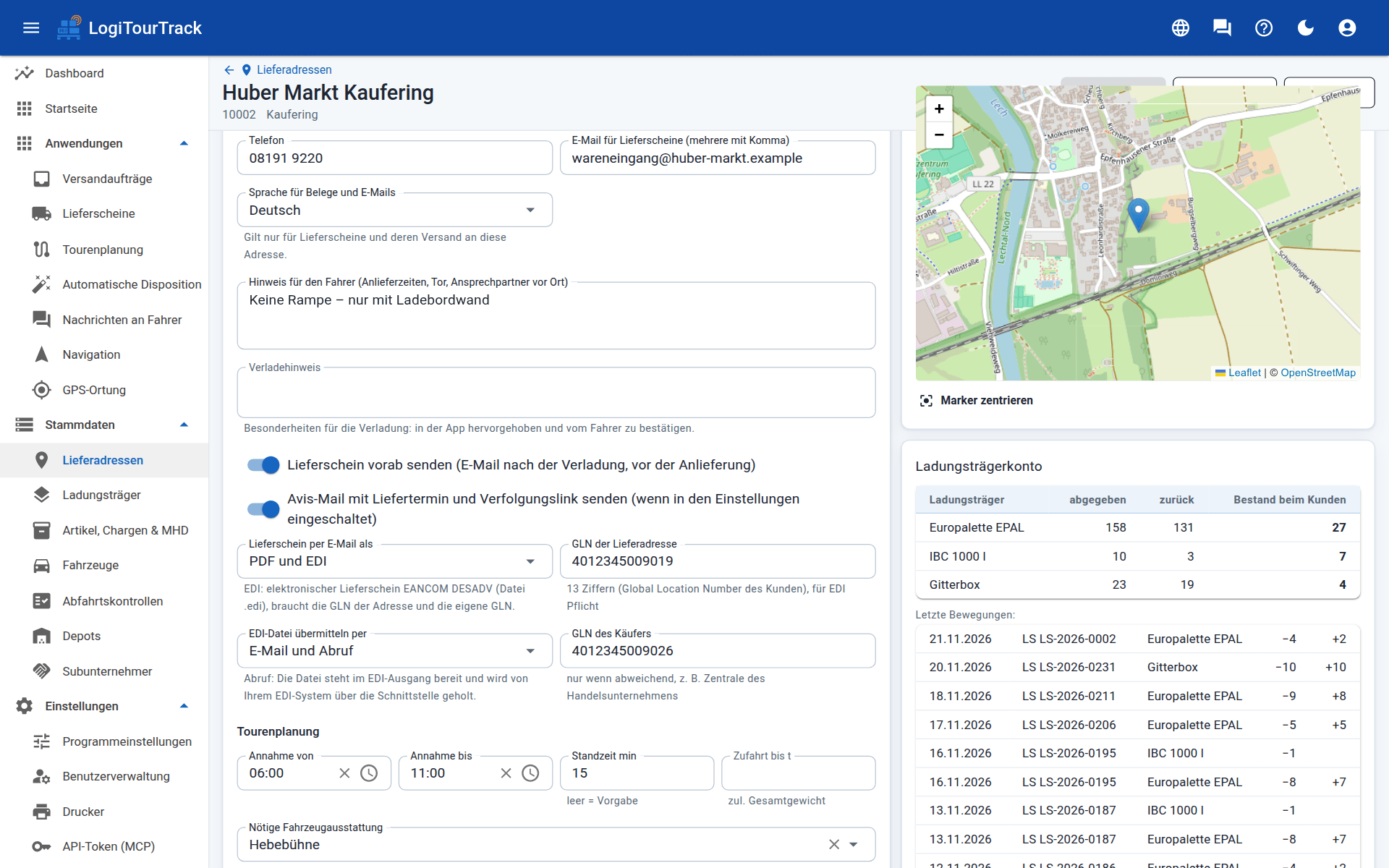
- The delivery address shows the load carrier account: handed over, returned, stock at the customer and the latest movements with delivery note.
- Example: At ‘Huber Markt Kaufering’ the driver hands over 4 Euro pallets and takes back 2 – the stock at the customer rises by 2.
Receiving times and pallet spaces
What route planning needs to know is stored with the delivery address and can be adjusted per delivery note.
- Delivery address: receiving time from/to, dwell time, access limit in tonnes, required vehicle equipment, note for the driver and loading note.
- Delivery note: different receiving time (empty = as for the delivery address) and pallet spaces (empty = sum of the quantities).
- For each delivery address you also choose the email recipients and the language for documents and emails.
Number ranges and document storage
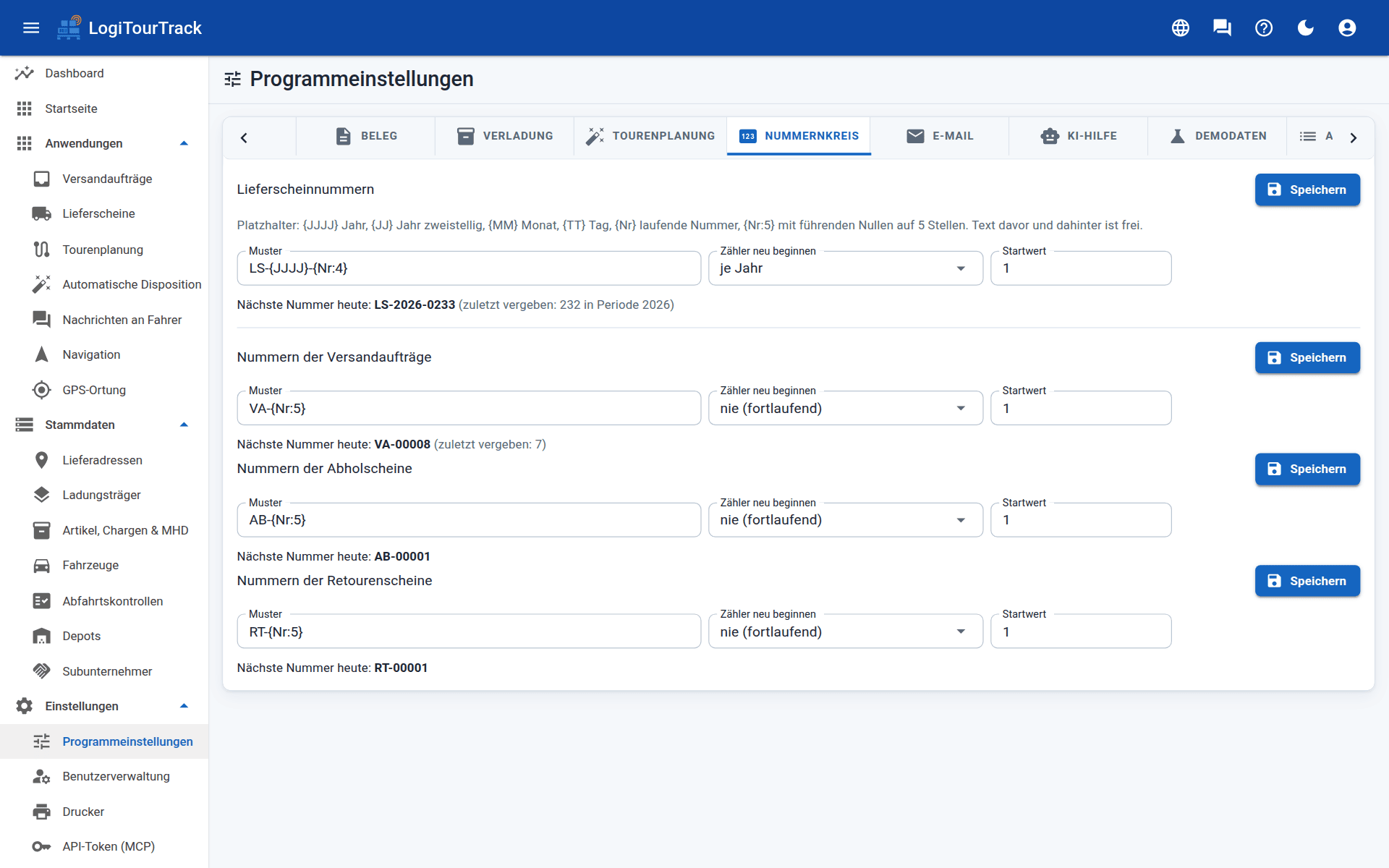
- You define the pattern of the delivery note number yourself, for example
LS-{JJJJ}-{Nr:4}for numbers such asLS-2026-0001. - The counter runs continuously or restarts every year, month or day.
- Shipping orders, collection notes and returns notes have their own number ranges.
- The signed delivery note is filed as a PDF with the delivery note. In the driver app, ‘Show delivery note’ shows line items, packages, load carriers, completion, documents and the delivery note PDF.
- Delivery notes and shipping orders can also come from your ERP system – see Integration and permissions.
* Add-on module ‘Automatic dispatch’: added to the subscription in the customer account, 4,00 € per vehicle per month (net). It is included in the demo version.
Try it out
Free for 30 days, with your own address and, if you wish, with sample data.