
Features › Documents and labels
Documents and labels
Every delivery note produces the paperwork that warehouse, driver and recipient need: the delivery note as PDF, the despatch advice as an EDI message and the pallet label with NVE. Printing is done at the push of a button or automatically, sending by email.
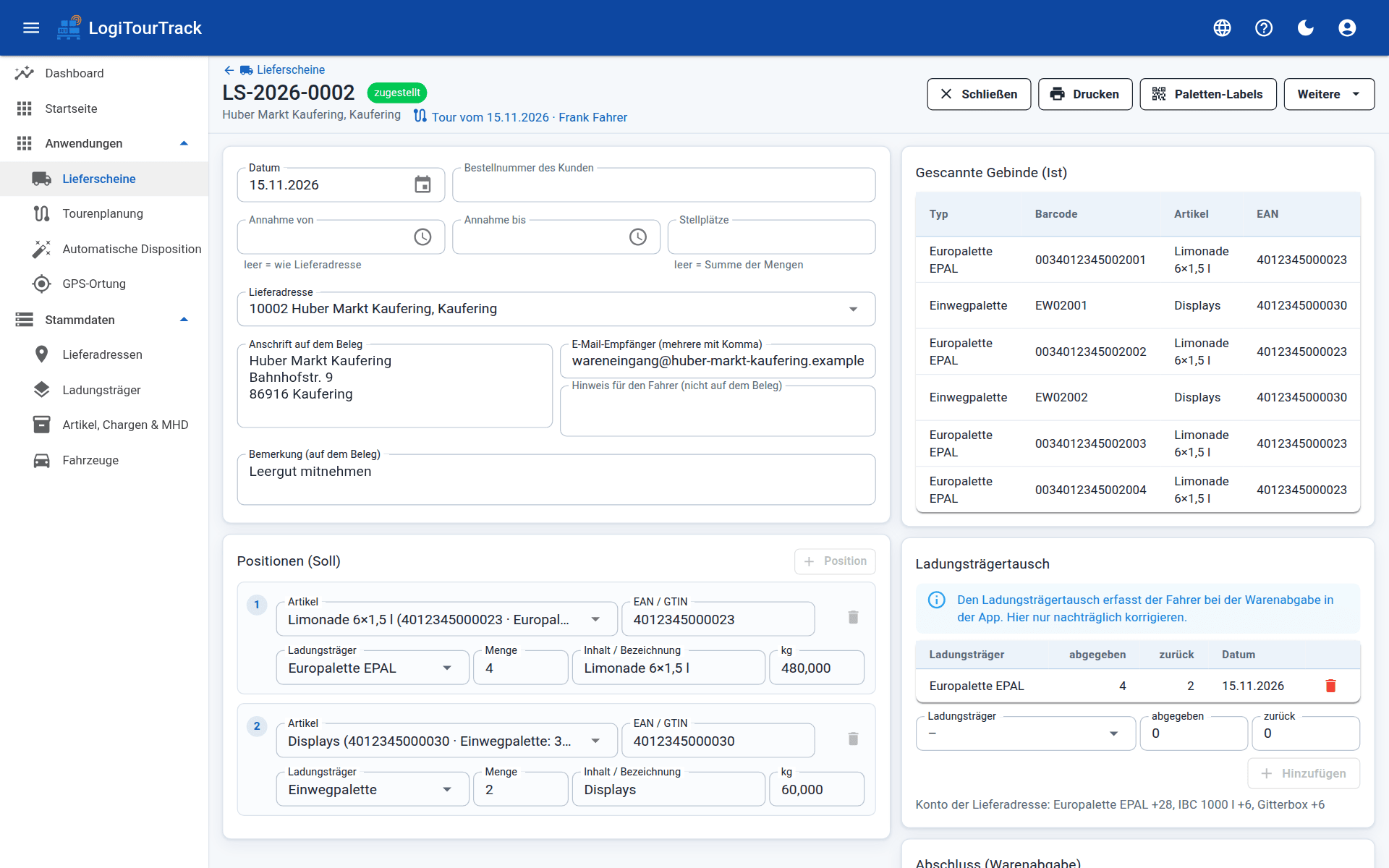
Delivery note as PDF
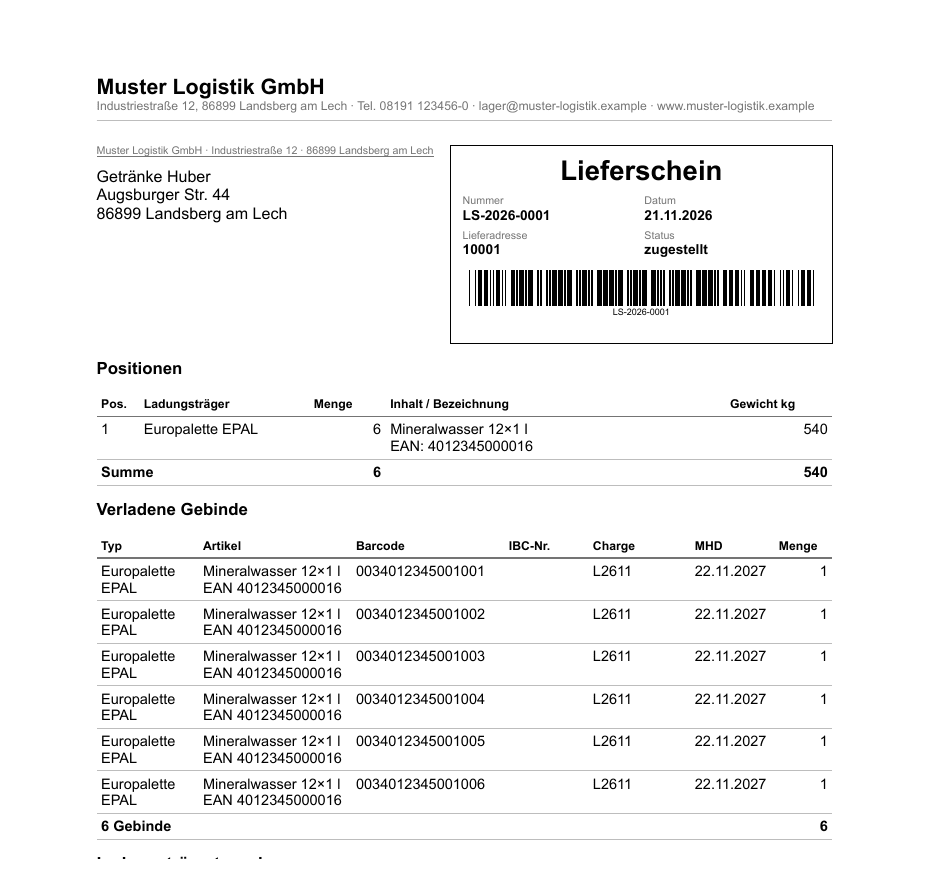
The delivery note is an A4 document with your company details, the line items, the load carriers and a barcode of the delivery note number, which the driver app scans.
- Header of your choice: text only, with your logo or on your own letterhead. You upload the letterhead as a full page (PDF or image) and set the top and bottom margins.
- Language per delivery address: Document and email appear in the language stored for the delivery address – German, English, French, Polish, Italian or Ukrainian.
- For the retail trade: The customer’s order number and the GLN of the delivery address appear in the header if they have been recorded.
- With signature: After goods delivery, the delivery note carries the recipient’s signature and name and is filed in the delivery note’s document storage.
Dispatch by email
The recipient receives the delivery note without anyone in the office having to send anything. The email addresses are stored with the delivery note or the delivery address.
- In advance after loading: If the option is set for the delivery address, the advance delivery note goes out as soon as everything is loaded – so the recipient knows what is coming. The ‘Send delivery note in advance’ button does the same by hand, on the web and in the driver app.
- With signature after delivery: As soon as the recipient has signed on the driver’s device, they receive the signed delivery note as a PDF.
- For each delivery address you define whether the delivery note is sent as a PDF, as an EDI message or in both forms.
Electronic delivery note via EDI
For retail customers, LogiTourTrack generates the despatch advice as an EANCOM DESADV message (D.96A). This requires your own GLN and the GLN of the delivery address; if the unloading point receives goods on behalf of a head office, you additionally enter the buyer’s GLN.
- Content: delivery note number, order number, delivery address and, for each shipping unit, the NVE/SSCC with article (EAN), quantity, weight, batch and best-before date. Shipping units are your pallet labels and the packages with NVE scanned during loading.
- Article numbers: Your own article number and the buyer’s can be included for each line item, the packaging code for each load carrier.
- Transmission: as an email attachment, for retrieval via the REST or MCP interface, or both. With retrieval, your EDI converter or EDI service provider fetches the file and transmits it to the retailer, for example via AS2 or X.400.
- Batch retrieval with acknowledgement: All open messages come in one file. Only the acknowledgement removes them from the pending set – an aborted retrieval returns them again on the next run.
- ‘EDI outbox’ page: shows every message with its status (open, acknowledged, replaced, error). There you can also download files by hand, individually or as a combined file.
If a delivery note changes after dispatch, a new message with a new reference is created; the old one counts as replaced. LogiTourTrack generates outgoing despatch advices; it does not process incoming purchase orders (ORDERS).
Example: excerpt from a DESADV message
One Euro pallet of mineral water for Getränke Huber, with NVE, batch and best-before date (abridged):
UNB+UNOC:3+4012345009002:14+4012345009026:14+261123:1412+00000017'
UNH+1+DESADV:D:96A:UN:EAN005'
BGM+351+LS-2026-0007+9'
DTM+11:20261123:102'
RFF+ON:PO-48203'
NAD+BY+4012345009026::9'
NAD+SU+4012345009002::9'
NAD+DP+4012345009019::9++Getränke Huber+Augsburger Str. 44+Landsberg am Lech++86899+DE'
CPS+1'
CPS+2+1'
PAC+1++201'
MEA+PD+AAB+KGM:612'
PCI+33E'
GIN+BJ+040123450000001235'
LIN+1++4012345000016:SRV'
IMD+F++:::Mineralwasser 12×1 l'
QTY+12:48:PCE'
PCI+36E'
DTM+361:20270531:102'
GIN+BX+261123-01'
…
Pallet labels with NVE/SSCC
On the delivery note you open ‘Pallet labels’. The dialog suggests one label per pallet – with contents, EAN, number and weight from the line items – and on printing assigns each pallet an NVE from your GS1 company prefix.
- Format: A6 portrait (105 × 148 mm) or the label size of your printer, for example 100 × 150 mm.
- Barcodes as GS1-128: the NVE (00), plus, if the EAN is valid, the contents (02) with count (37) and, above that, best-before date (15), gross weight (330x) and batch (10).
- Batch and best-before date: If the article has batches, the dialog suggests the batch with the earliest best-before date that is still valid. You create a new batch in the same dialog.
- One scan is enough: During loading, the driver app reads the NVE and EAN from the label and checks the pallet against the delivery note.
- Reprint: A reprinted label keeps its NVE. The font size of the text section is adjustable.
What is on the label:
Von:  Muster Logistik GmbH, Landsberg am Lech
An:   Getränke Huber, Augsburger Str. 44, 86899 Landsberg am Lech
Lieferschein LS-2026-0007 · 23.11.2026 · Palette 1 von 3
NVE (SSCC): 0 401234500 0000123 5
Inhalt: Mineralwasser 12×1 l
EAN 4012345000016 · Anzahl 48 · Europalette EPAL
Charge 261123-01 · MHD 31.05.2027 · Gewicht 612 kg

(15)270531(3300)000612(10)261123-01
(00)040123450000001235(02)04012345000016(37)48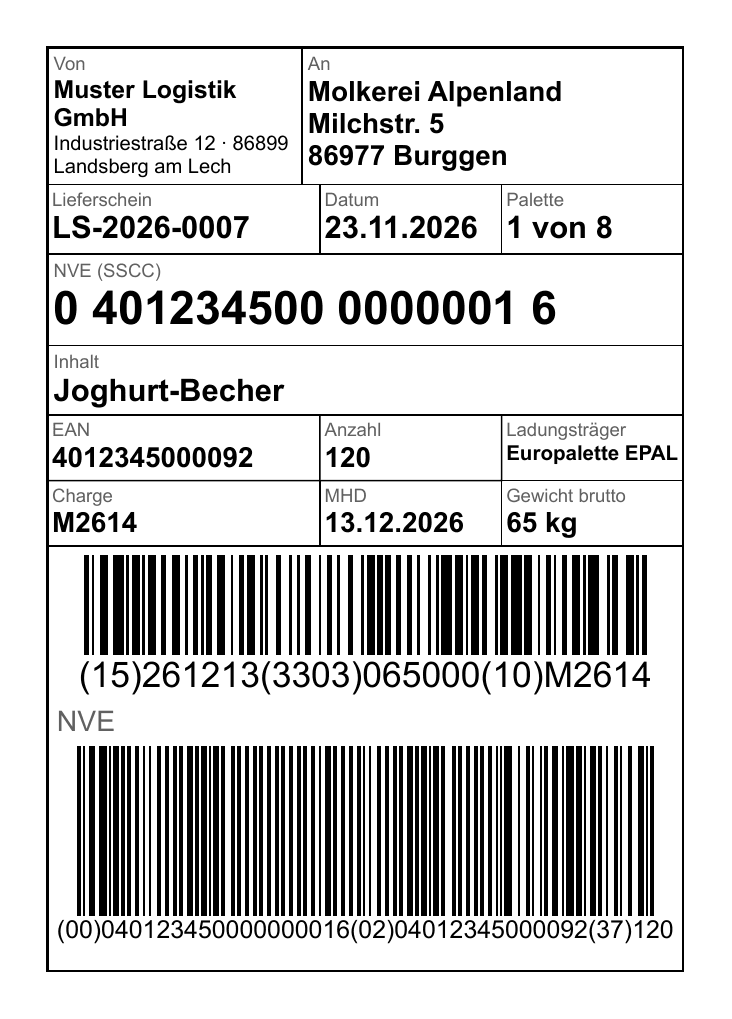
Direct printing via the print agent
So that documents come out of the printer without a detour via the PDF, the print agent runs as a service on a Windows computer in your network. It fetches the print jobs itself; no port forwarding is required.
- Set-up: Create a print agent in the web application, start the program on the computer next to the printer and enter the pairing code displayed. The agent then reports its printers with paper sizes and trays.
- Office and label printers: up to ten printers per instance. For each printer you choose the paper size (A4, A5, A6, Letter, labels or custom dimensions), tray, copies and whether to print fitted to the page or at original size.
- Default printer per document type: Delivery note, pallet labels and tour plan go to their printer with one click on ‘Print’; the other printers and the PDF are in the menu next to it.
- ZPL for label printers: Pallet labels can also be sent as raw ZPL data instead of as a PDF (203 or 300 dpi); the printer then draws the barcodes itself.
- Print log: every job with time, user, printer and status. ‘Print again’ sends a document once more for as long as it is stored (seven days).
Without a print agent, ‘Print’ opens the PDF as usual. The print agent runs on Windows and sees the printers that are set up on the computer for all users.
Automatic printing
Rules of the form ‘Event → Document → Printer’ print without any intervention, only once per document and rule – regardless of whether the event comes from the web application, the driver app or the interface.
- Delivery note created → delivery note
- Delivery note loaded → delivery note
- Delivery note delivered → delivery note with signature as confirmation of receipt
- Pallet labels generated → labels of the new pallets
- Tour plan on the day before → daily plan per driver at the set time
Printing takes place with a delay of up to about half a minute. The rules can also be maintained via the REST and MCP interface.
Example: a delivery to Getränke Huber
- Dispatch creates the delivery note for three Euro pallets of mineral water. The ‘Delivery note created’ rule prints it on the laser printer in the office.
- In the warehouse, an employee opens ‘Pallet labels’ and confirms the suggestion. Three labels with consecutive NVEs come out of the label printer in the hall.
- Frank Fahrer scans the three labels during loading. After the last scan, the advance delivery note goes to Getränke Huber, and the DESADV message is ready in the EDI outbox.
- The EDI service provider fetches the message in a batch retrieval and acknowledges it.
- At the loading dock, M. Huber signs on the driver’s device. The signed delivery note goes to the customer by email and is filed in the document storage in the office.
Further printouts
- Daily and weekly plan: Route planning prints the daily plan of a driver and the weekly plan for one or all drivers – with the time per stop, the weight and the vehicle’s payload.
- Logbook: GPS tracking produces a vehicle’s logbook as a PDF. More on this under GPS tracking and truck navigation.
Try it out
Free for 30 days, with your own address and, if you wish, with sample data.