
Features › Loading by scan
Loading by scan
During loading, the driver scans every package with the driver app. The app checks immediately whether it is on the delivery note, and the office sees what is on the vehicle without having to ask.
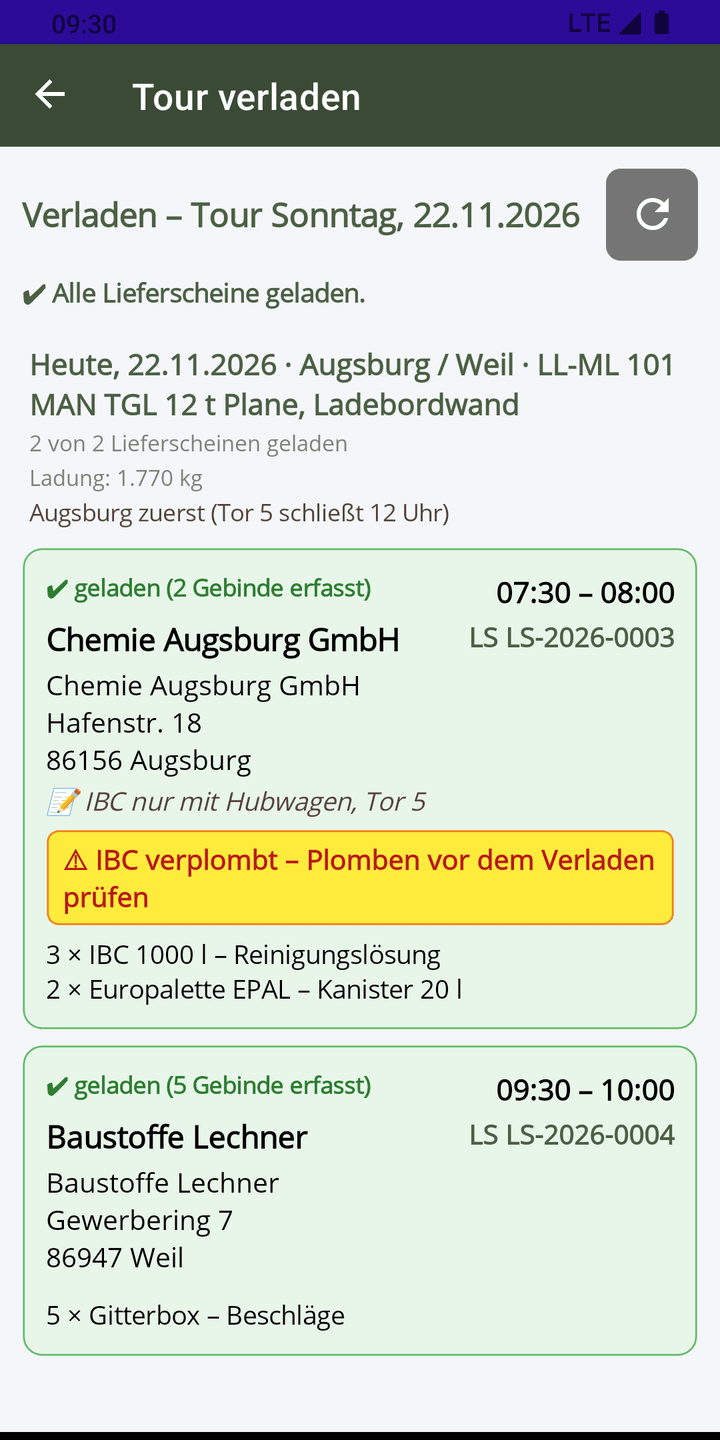
Load tour: today and the next tour day
The ‘Load tour’ tile shows the driver the stops of their tours for today and the next tour day – so loading can also be done the day before.
- The loading status is shown for each stop: ‘not loaded yet’, ‘✔ loaded’ or ‘✔ delivered’.
- For each stop the contents of the delivery note are visible, for example ‘8 × Euro pallet EPAL – Yoghurt pots’.
- A tap on the stop opens loading with the right delivery note.
- It also works without a tour: scan the delivery note number from the document, type it in or select it from the list of the last four weeks.
- For a collection or return, ‘Collection at the customer’ is shown; the driver then scans the packages on site.
- You define via the user permissions who is allowed to load.
Scanning packages
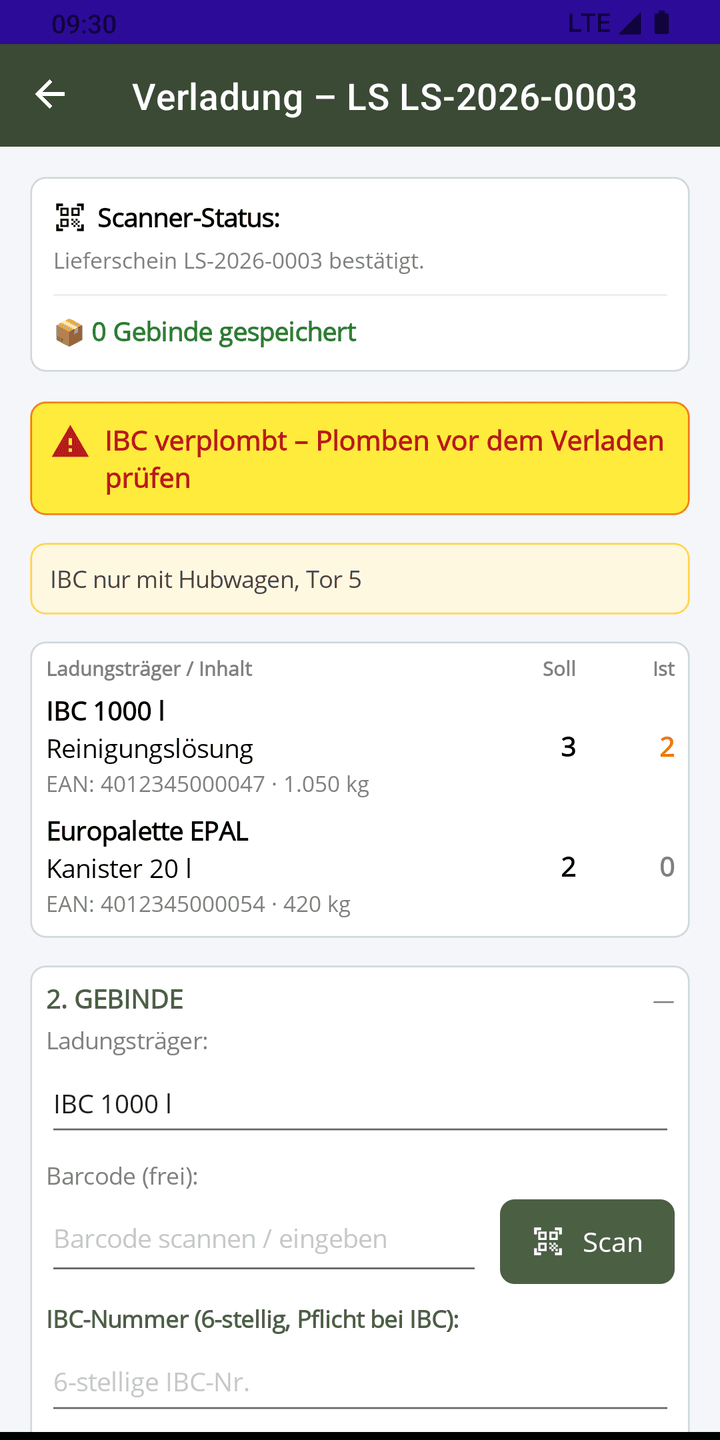
For each line item, loading shows load carrier, contents, EAN and weight, plus planned and actual quantities. The actual quantity counts up with every scan.
- A success, duplicate or error sound reports the result – the driver does not have to look at the display.
- For IBCs the app additionally asks for the 6-digit IBC number, by scan or by entry.
- EAN, batch, best-before date, quantity and weight come from the barcode or are added by hand.
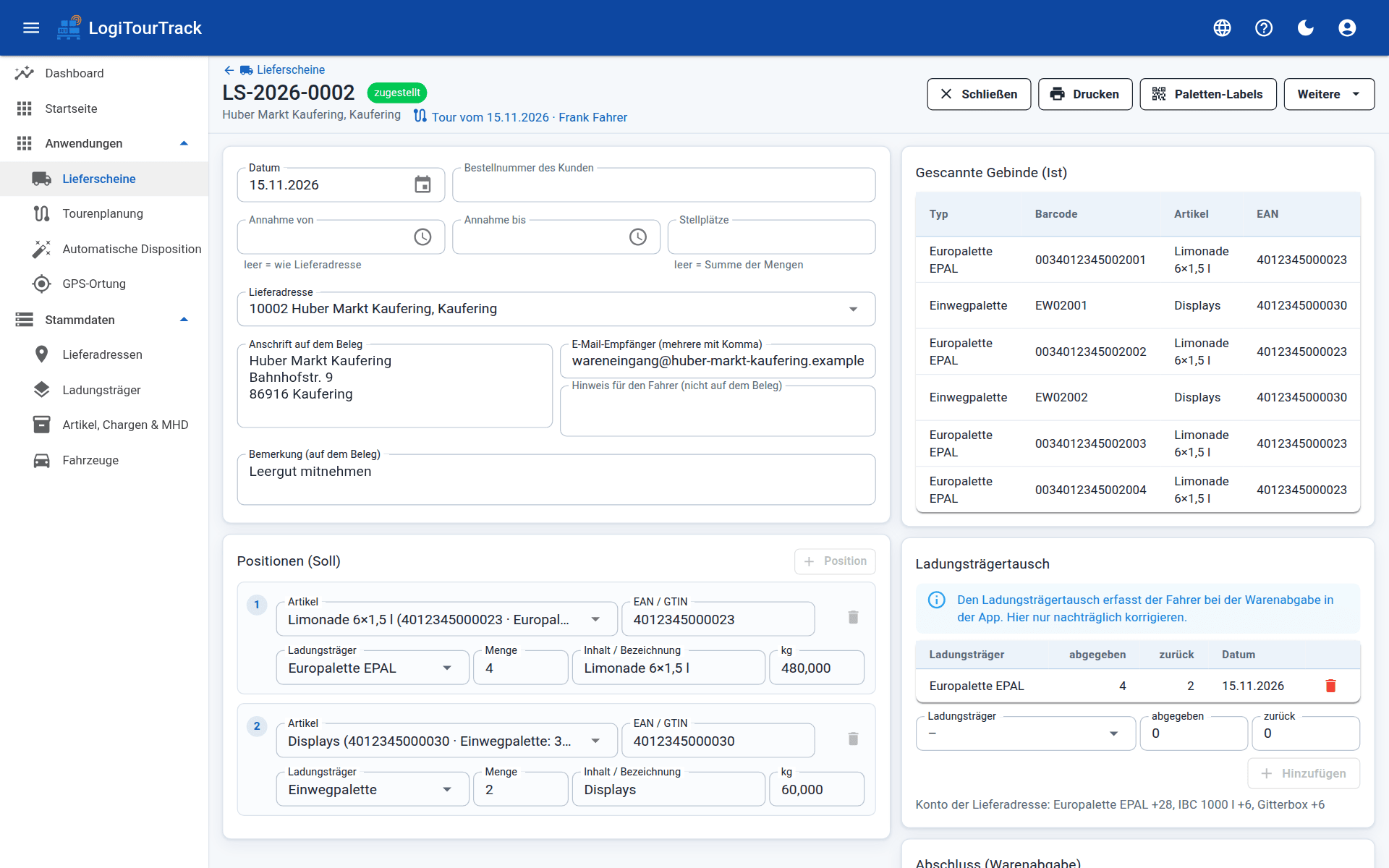
- With ‘Send’ the packages go to the office; there the delivery note is set to ‘loaded’ and shows every package with barcode, batch, best-before date and time.
Four ways to read a barcode
- Handheld with built-in scanner: The scanner reports the code directly to the app – the fastest way when loading.
- Hand-held scanner in keyboard mode: via Bluetooth or USB, terminated with Enter.
- Camera: on smartphones and tablets without an additional device. If there are several barcodes on a label, the camera looks for the one that matches the delivery note.
- Bluetooth scanners from Socket Mobile: are connected directly via the ‘Socket Mobile Companion’ app.
Which devices are suitable and what to set on them is described under Supported devices. The driver app runs on Android and on the iPhone.
SSCC and GS1-128
For each load carrier you define how its barcode is read: free (taken over unchanged), as SSCC/NVE with 18 digits or as GS1-128.
Example: label of a pallet of yoghurt pots (00)340123450000000017(02)04012345000092(37)120
(00)NVE/SSCC: becomes the barcode of the package.(02)GTIN of the contents: is taken over as the EAN and compared with the line item of the delivery note.(37)Count: 120 pieces on the pallet. The pallet still counts as one load carrier.
GTIN (01), batch (10), best-before date (15) or expiry date (17) and weight (310x/330x) are also evaluated. A second barcode on the label with best-before date, weight and batch is assigned to the package just scanned.
LogiTourTrack also prints such labels itself – see Documents and labels.
Only what is on the delivery note is loaded
If the delivery note has line items, the app accepts a package only if it matches them:
- The load carrier must occur in a line item.
- If the line item states an EAN, the EAN of the package must match. Line items without an EAN accept any package on this load carrier.
- More than the planned quantity is not possible; loading less is permitted.
- Delivery notes without line items allow any package.
The app reports a non-matching scan with an error sound and a reason. On transmission, LogiTourTrack checks the same rule once more, with binding effect. Batch and best-before date are taken over but not checked.
Example: loading chilled goods for tomorrow
- In the afternoon, driver Sabine Steuer opens ‘Load tour’. Under tomorrow’s tour, ‘Molkerei Alpenland’ is listed with ‘8 × Euro pallet EPAL – Yoghurt pots’, status ‘not loaded yet’.
- She taps the stop. Loading shows planned 8, actual 0.
- She scans the label of the first pallet. The EAN matches, the success sound plays and the actual quantity is 1.
- By mistake she scans a pallet of mineral water. The EAN is not on the delivery note: error sound, the package is not accepted.
- After the eighth pallet the planned quantity is reached; the app would reject a ninth.
- She taps ‘Send’. In the office the delivery note is set to ‘loaded’, with eight packages including batch and best-before date.
Loading notes and delivery note in advance
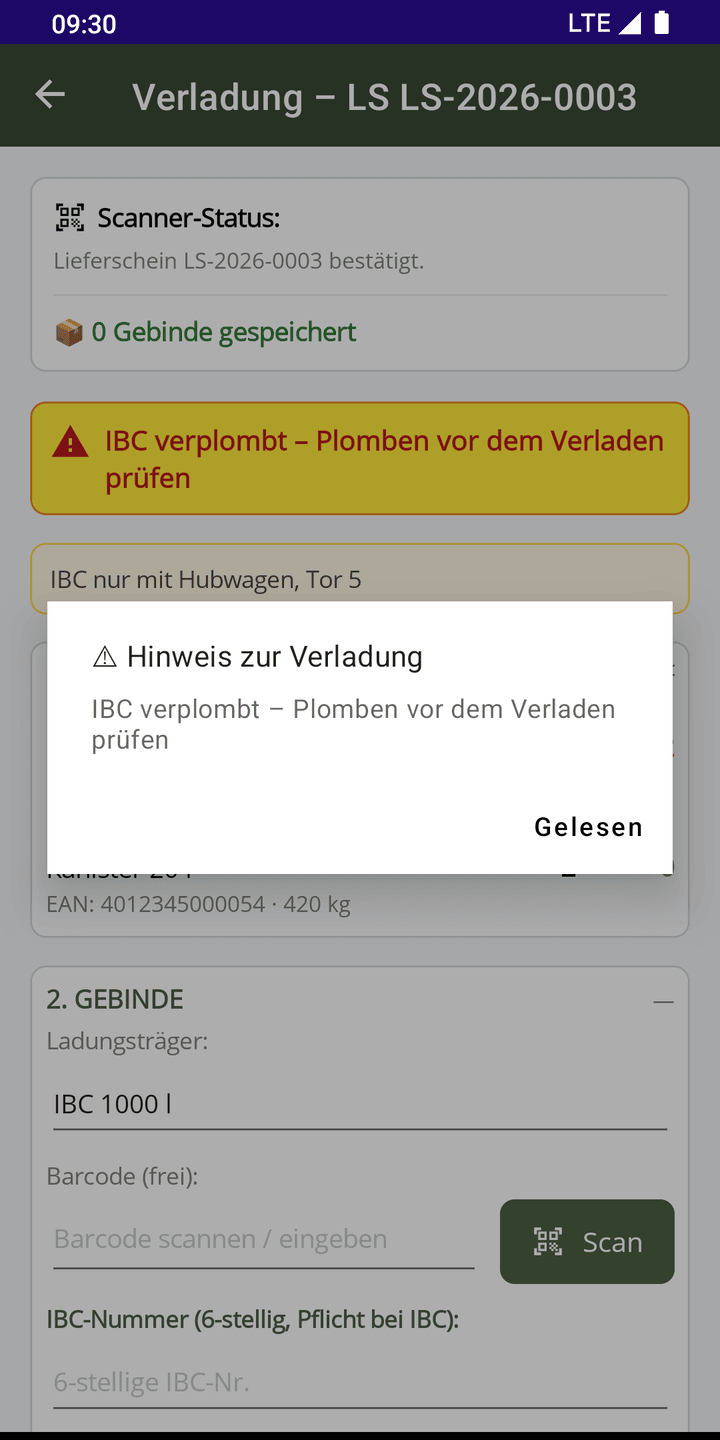
- Loading note per delivery address: special requirements such as plastic pallets or sealed IBCs. The app highlights it in yellow in ‘My tours’ and ‘Load tour’.
- When the delivery note is opened, ‘⚠ Loading note’ appears; the driver confirms with ‘Read’. The note remains above the line items.
- Delivery note in advance: If this is switched on for the delivery address, the recipient automatically receives the delivery note by email once loading is complete – before the goods arrive.
- It can also be done by hand: the ‘Send delivery note in advance’ button in the driver app and in the delivery note in the office.
Departure check
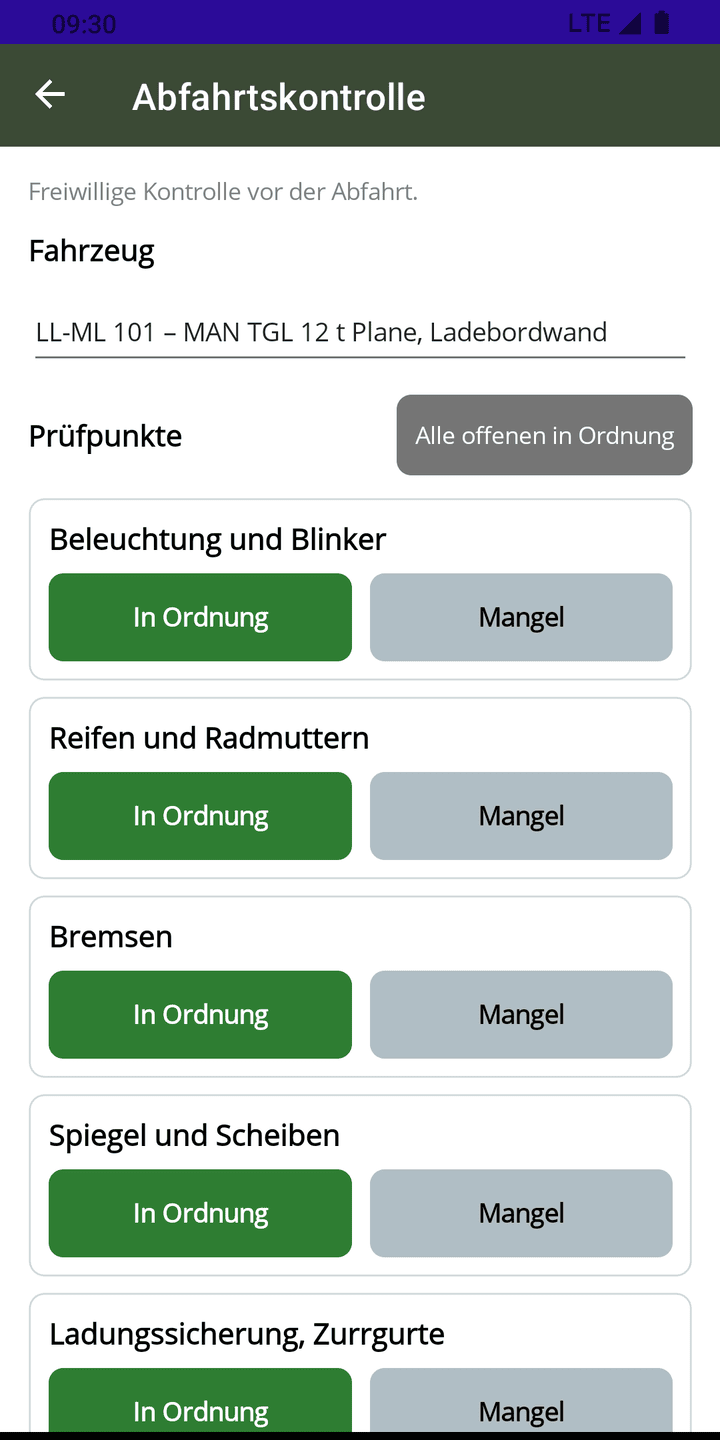
Before departure, the driver checks their vehicle item by item in the app. You switch on the departure check in the settings: optional or mandatory before the first goods delivery of the day.
- You define the check items yourself; LogiTourTrack adds seven common items (lights, tyres, brakes, load securing and others) at the push of a button.
- The driver selects the vehicle and marks each item as ‘OK’ or ‘Defect’ with a description; the odometer reading is optional.
- In the event of a defect, an email is sent to a stored address if you wish.
- In the office, all checks are shown in a list with filters by vehicle, period and ‘with defects only’. The vehicle list shows ‘Defect reported’.
Even without a network connection
In the hall or in the yard there is often no reception. The driver app keeps working nonetheless.
- After sign-in, the app loads tours, delivery notes and load carriers in advance.
- Scanned packages are first saved on the device and sent automatically as soon as there is a connection again.
- The check against the delivery note also applies without a network connection, based on the data loaded in advance.
- If LogiTourTrack rejects something when it is sent later – for example because two devices have loaded the same delivery note – it appears on the app’s home page to be sent again or discarded.
- Only the advance delivery note needs a connection.
Try it out
Free for 30 days, with your own address and, if you wish, with sample data.